Choose a photo or video
The browser validates and decodes supported media locally.
Reduce the visible green cast, grain, and hard tone in photos and video you have permission to edit. Processing stays on your device.
This tool adjusts pixels that are already visible. It cannot reconstruct covered, deleted, or missing content.
The same example photo is shown in its original state and with a Matcha-style filter applied, so the green cast and grain are easy to compare.

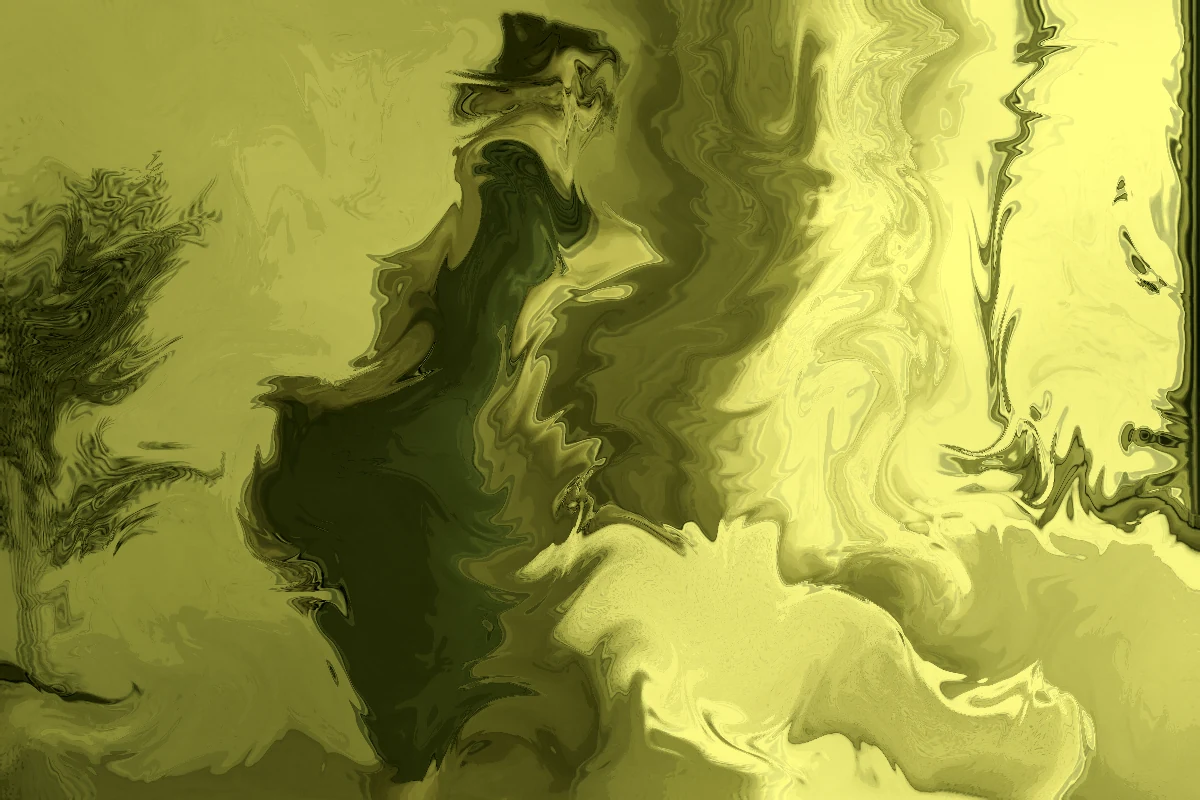
Illustrative, AI-generated example imagery. The live remover processes the photo or video you choose locally in your browser.
Not a magic undo button.
The reducer can balance color, soften visible grain, and emphasize existing edges. It cannot reconstruct pixels absent from the file.
Evidence reviewed on August 9, 2026 links the breakout use of “Matcha Filter” to a Philippine TikTok cluster pairing the wild hearts whisper effect with original sound – Shan. The name was community-created, not the official effect title.
We do not claim a unique trend originator. Source counts and platform context can change.The browser validates and decodes supported media locally.
Start with Light, Balanced, or Strong. Adjust three controls if needed.
Inspect Before/After and export the processed media without sending it away.
Most searches for a Matcha Filter remover begin with a finished TikTok photo or video that looks much greener, grainier, or flatter than the original scene. The phrase can describe a strong olive cast, a yellow-green wash, softened detail, extra grain, dense contrast, or several of those changes at once. A useful correction starts by separating those visible traits instead of treating every green image as the same problem.
For example, a green shirt, a forest background, a neon sign, or a strawberry matcha drink may be naturally green and should remain green. A global cast is different: white paper, silver objects, skin highlights, walls, and shadows all shift toward a similar green or olive tone. In that situation, a modest color and texture adjustment can make the source look more balanced. The goal is not to erase intentional color from the scene. It is to reduce an unwanted overall treatment while keeping the subject, light, and composition recognizable.
This browser-local Matcha Filter remover is for media you own or are authorized to edit. It adjusts the pixels and frames that are still present in the file. It does not access TikTok, X, or another platform account, and it does not retrieve an earlier upload. If you still have the original camera file, keep it: the original is the best reference for color, detail, and exposure.
A still photo gives you time to inspect neutral surfaces and compare small changes. Begin with the least stylized part of the image: a white wall, paper, teeth, grey clothing, or a metal object. If that area leans yellow-green, reduce the cast gradually and check whether skin tones, product colors, and shadows still look believable. Raising brightness alone often makes a green cast brighter; removing too much green at once can produce an artificial magenta result. The better target is a quieter, more natural relationship between warm and cool tones.
A Matcha Filter video remover has an additional job: the adjustment must remain plausible as the light, camera, and subject move. Check an opening frame, a middle frame, and a bright or dark transition. When the same cast persists throughout the clip, a restrained reduction can be appropriate. When the tint changes because of a real light source or a moving screen, a lighter setting may be safer. Video compression can also look like grain or blur, so avoid treating every blocky artifact as something a color control can repair.
Supported photos and videos are processed in browser memory. That matters if you are comparing a personal clip, a draft, or client media and do not want to upload the source simply to test a correction. Use Before and After to judge whether the visible treatment has improved at a normal viewing size. If the result starts to look less faithful than the source, lower the adjustment or keep the original look.
The Matcha Filter trend is community language for a recognizable green visual style, not a guarantee that every post used one identical official filter. Searches such as “matcha filter TikTok,” “green matcha filter trend,” and “how to remove Matcha Filter TikTok” often combine two different needs: people want to understand the trend, and they want a practical way to soften the look on their own photo or clip. Those needs are related, but they are not the same as recovering an unedited original from a finished post.
The available source chain on this site associates the community wording with the TikTok effect wild hearts whisper and an audio cluster credited as original sound - Shan. Community naming changes quickly, so it is better to describe the visible appearance than to make claims about one creator, one exact effect setting, or one universal origin. Read what the Matcha Filter means for the source context, or open the removal guide for the practical workflow.
Some related-search lists include phrases like “black matcha filter,” “filter remover matcha,” or “matcha filter AI remover.” They do not always refer to the same visual problem. An unrelated product name or a naturally dark scene is not evidence of a green color cast. Likewise, an AI remover should not be understood as a tool that can invent a face, text, object edge, or hidden detail after a filter, blur, or overlay removed it. Honest processing can balance visible color and texture; it cannot recreate information absent from the exported media.
Start with a Balanced preset, then make one change at a time. Neutralize is for excess green or olive color. Denoise can soften some visible local variation and filter grain. Detail can emphasize edges that already exist in the source. These controls work best as a small correction pass, not as a promise that a compressed, blurred, or heavily stylized clip will become a high-resolution original.
A successful Matcha Filter removal is usually subtle. Whites and neutral greys stop leaning green, shadows keep some color rather than turning black, and skin, food, or product colors do not compete with a global lime tint. Grain may feel less distracting, but it will not restore texture that was removed before the file reached the browser. When a video contains changing light, check more than one moment before exporting. A setting that helps a bright frame may overcorrect a darker frame.
Save a copy before exporting if the source matters. For client work, note the target: less green cast, softer grain, or gentler contrast. For a personal TikTok photo or video, compare the result at the size people will actually see. This makes the workflow practical and avoids the common mistake of pushing every control until the file merely looks different. The best result is the one that improves the visible treatment while preserving the character of the source.
Choose Matcha Filter remover when your goal is to reduce a visible green cast, grain, or hard tone in a photo or video. Choose Apply Matcha-style filter when you want to create an olive-green, grainy treatment from a source you are allowed to edit. The two modes have opposite purposes: one aims for a more neutral visible result, while the other creates a stylized visual effect.
If your question is informational rather than technical, the Matcha Filter trend guide explains the community name and its source context. If you are deciding how to work on a specific file, the how to remove Matcha Filter guide explains the order of operations for photos and video. These pages use related language naturally because they answer different parts of the same search journey, not because a keyword list needs to appear on every screen.
Whether you call it a Matcha Filter remover, green filter remover, TikTok Matcha Filter remover, or video filter effect remover, keep the same boundary in mind: edit only media you have the right to use, preserve the source whenever possible, and judge the result by visible color and texture rather than an impossible claim of reconstruction.
No. It adjusts visible pixels and frames only. Covered, deleted, or heavily distorted information cannot be reconstructed by this tool.
No application code sends the selected photo or video to a server. It is decoded, processed, and exported in browser memory. Hosting/CDN services may still process standard request data such as IP and user agent.
Rendering and encoding capabilities vary by browser and device, so preview quality, processing speed, and available export options may differ.